Maximize Your Academic Success with Gemini in Google Workspace
Introduction
As the new semester approaches, students are gearing up for the challenges ahead. Google Workspace, equipped with the powerful Gemini AI, offers innovative solutions to help students stay organized and enhance their productivity. This article explores seven effective ways to leverage Gemini in Google Workspace for a successful school year.
1. Organize Your Semester with Custom Dashboards
Managing various classes can be overwhelming, but Gemini can simplify this process. By utilizing Google Sheets, you can create a personalized semester dashboard. This interactive tool not only tracks assignments and due dates but also allows you to visualize your tasks.
How to Use: Open a Google Sheets document and input your class schedules and syllabuses. Select “Create canvas” in the Gemini side panel and prompt, “Turn my spreadsheet into a visual dashboard.” Customize your dashboard with a Kanban board and a color-coded calendar for due dates.
2. Transform Notes into Study Guides
Preparing for exams requires efficient study techniques. Instead of sifting through disorganized notes, use Gemini in Google Docs to convert your raw materials into structured study guides.
How to Use: Highlight your notes in Google Docs and open the Gemini side panel. Ask Gemini to summarize your notes into key takeaways and generate potential exam questions. You can also request visual aids like infographics to enhance your understanding.
3. Create Stunning Presentations Effortlessly
Building presentations can be a daunting task, but Gemini simplifies it. With its full-deck generator in Google Slides, you can turn your essays or research papers into visually appealing presentations in no time.
How to Use: Start a new presentation in Google Slides and describe your needs in the Gemini side panel. Use prompts like, “Create a presentation summarizing my research on [Insert topic].” You can also share past presentations to maintain a consistent design style.
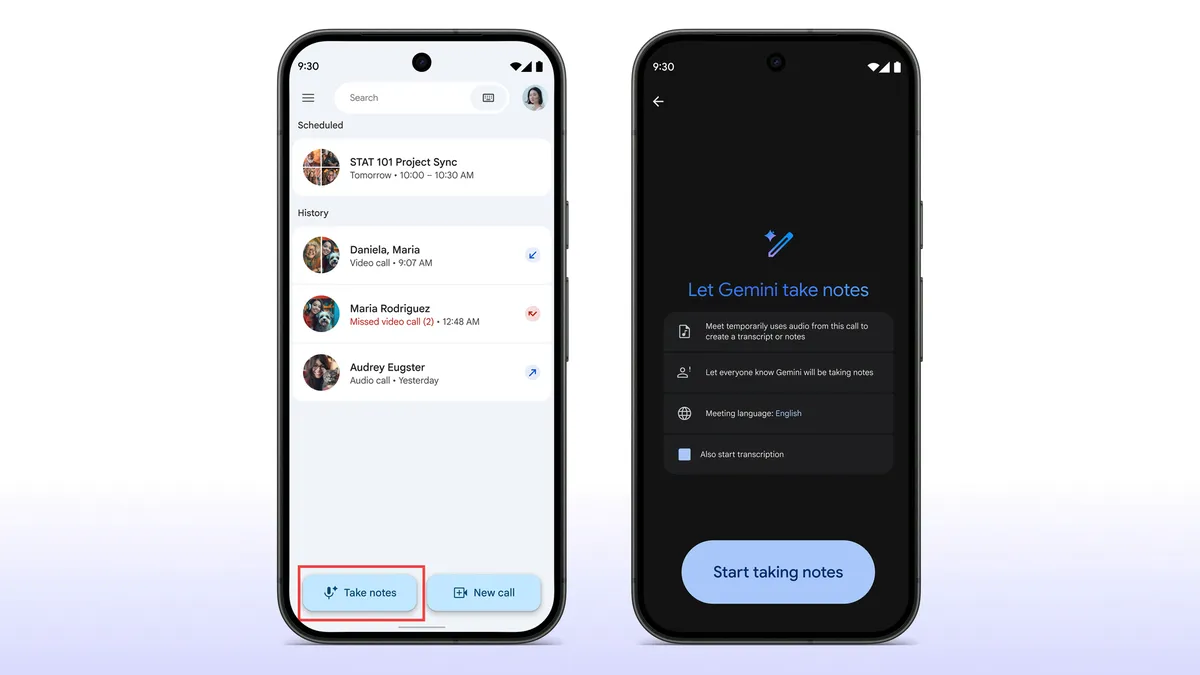
4. Automate Meeting Notes and Action Items
Participating in class discussions while taking notes can be challenging. Gemini in Google Meet can alleviate this issue by keeping track of important points, action items, and decisions made during meetings.
How to Use: While in a Google Meet session, allow Gemini to document key information in a Google Doc. This lets you focus on the conversation without the distraction of note-taking.
5. Build Custom Study Quizzes
Practice quizzes are an effective way to reinforce learning. With Gemini, you can create tailored quizzes based on your study materials, ensuring a comprehensive review before exams.
How to Use: Use Gemini to generate quizzes from your notes or study guides. Simply prompt it to create questions that align with the material you need to review.
6. Collaborate on Projects with Ease
Group projects can be challenging, especially when coordinating schedules and contributions. Gemini facilitates collaboration by allowing students to work together on shared documents, track changes, and manage deadlines seamlessly.
How to Use: Share your Google Docs or Sheets with classmates and use Gemini to assign tasks, set deadlines, and monitor progress in real-time.
7. Access Free AI Tools for Students
Google is offering eligible college students a free one-year subscription to Google AI Pro or Plus, giving them access to these powerful tools at no cost. This initiative aims to support students in managing their academic workload more effectively.
How to Access: Students can sign up for the free subscription through their Google accounts, unlocking a suite of AI-powered features designed to enhance their educational experience.
Conclusion
As students prepare for the upcoming semester, utilizing Google Workspace with Gemini can significantly improve organization and productivity. By implementing these seven strategies, you can streamline your academic tasks, collaborate more effectively, and ultimately achieve greater success in your studies.
Source for the original facts: Original source.