Enhancing App Discovery on Google TV: A Guide for Developers
As the digital landscape evolves, Google TV and Android TV have emerged as significant platforms, boasting over 300 million monthly active devices. This presents a unique opportunity for developers to enhance app growth through improved discoverability and user engagement.
Introducing Gemini: Your AI Voice Assistant
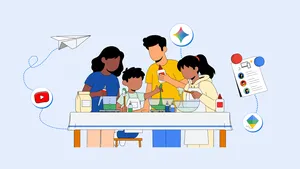
Google has taken a significant step forward by integrating its AI voice assistant, Gemini, into the Google TV ecosystem. This intelligent assistant simplifies the content discovery process, allowing users to find shows, learn new information, and complete everyday tasks using just their voice. Since its launch, Gemini has been refined to provide more personalized responses, combining visuals, videos, and text to assist users effectively.
Gemini as a Discovery Engine
For streaming partners, Gemini acts as a robust discovery tool, leveraging app metadata to present relevant content to viewers. This capability enhances the overall user experience, making it easier for audiences to engage with your content.
The Evolution of User Interaction
The traditional TV viewing experience is undergoing a transformation, particularly in how users interact with their devices. The introduction of pointer remotes allows for motion-controlled navigation, enabling faster access to the Google TV Home page and content-rich applications.
Preparing Your App for Pointer Input
To ensure your app is optimized for this new mode of interaction, developers should consider implementing support for hover states, scrollable containers, and cursor clicks. This adaptation is essential for providing a seamless experience on Google TV.
- Hover States: Create larger hover targets to accommodate the less precise nature of pointer remotes, as users may be seated several feet from the screen.
- Scrollable Containers: Implement scrollable elements that can be easily navigated using pointer input.
- Cursor Clicks: Ensure that clickable elements respond effectively to cursor interactions.
For developers using Jetpack Compose, the transition to supporting pointer input is smoother, as many core components are designed to handle these interactions natively.
Testing Your App’s Pointer Compatibility
To assess how your app performs with pointer inputs, connect a Bluetooth or wired mouse to your Google TV. This allows for a more precise evaluation of hover, scroll, and click functionalities. Remember, while a mouse offers better control, pointer remotes require designs that consider the distance from the screen.
Registering Your App with Google Play
To enhance visibility among users with pointer remotes, it’s crucial to inform Google Play that your app supports this input method. This can be accomplished by adding a specific meta-data tag to your AndroidManifest.xml file:
<meta-data android:name=”android.software.leanback.supports_touch” android:value=”true” />
This declaration indicates that your TV app is designed to accommodate touch-like interactions, making it easier for users to locate and interact with your app.
Onboarding the Engage SDK
The Engage SDK, previously known as the Video Discovery API, plays a pivotal role in optimizing app discovery and engagement. It enhances features like Resumption, Entitlements, and Recommendations across all Google TV devices.
Developers are encouraged to onboard the Engage SDK promptly, especially since the legacy Watch Next API will cease support in the second half of 2027. For more details on how to get started, visit goo.gle/engage-tv.
In conclusion, with the advancements in Gemini and the tools provided for developers, there is a tremendous opportunity to enhance content discoverability and user engagement on Google TV. Embracing these changes will ensure that your app remains relevant and easily accessible in this evolving landscape.
Source for the original facts: Original source.